

- Every morning, send me a Slack message with everything that needs my attention.
- Every morning at 8am, send an update on the World Cup games I should watch that day.
- Every hour, monitor my email and ping me in Slack about anything actually worth responding to.
/craft/v1/tasks.
Create a task
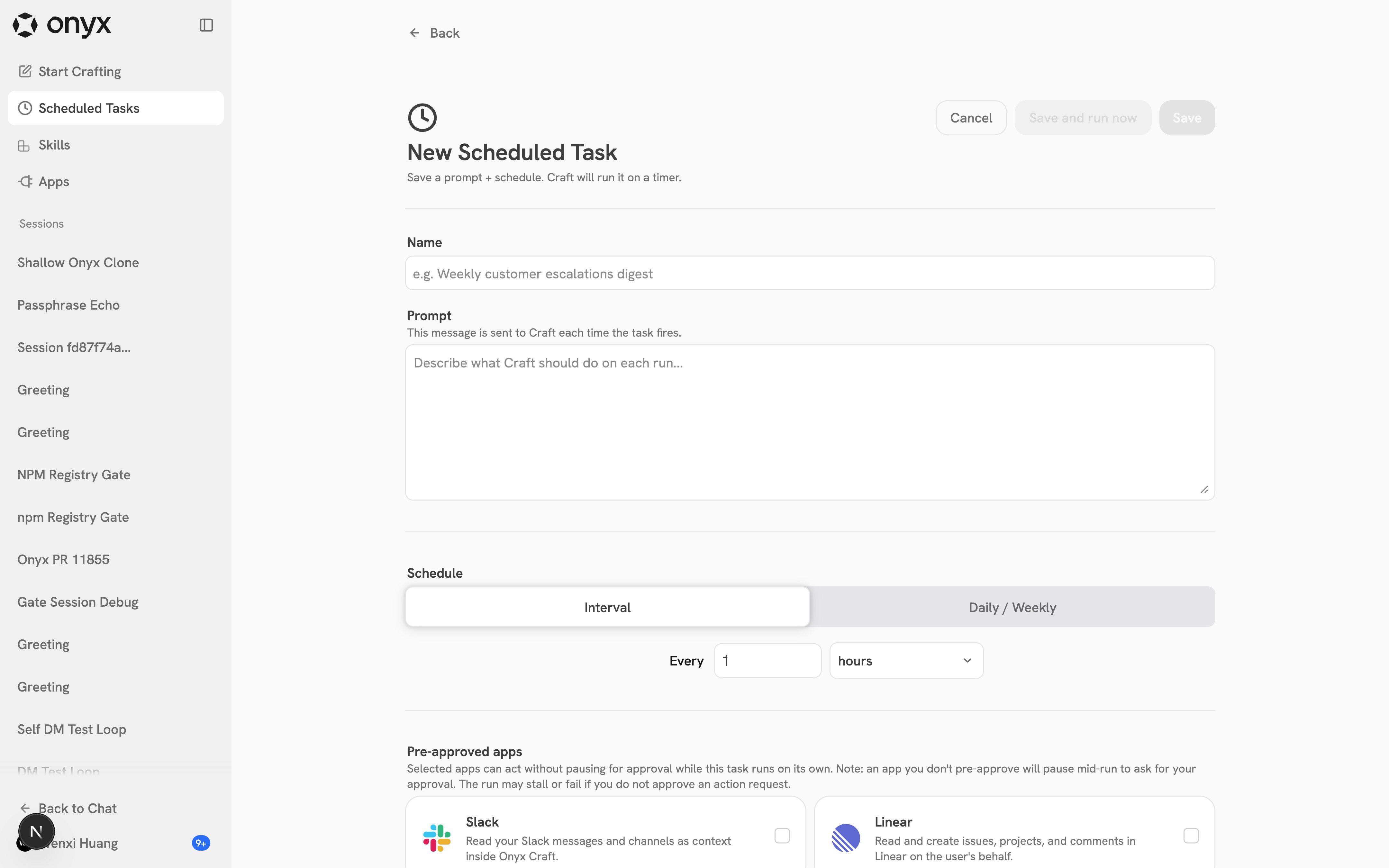
Write the name and prompt
Give the task a clear Name, then write the Prompt that Craft receives on every run.
Include the output format, source material, audience, and any skills or apps it should use.
Choose a schedule
Pick Interval (every N minutes or hours) or Daily / Weekly (a time of day on selected days).
Daily and weekly times use your browser’s local time.
Pre-approve expected apps
Under Pre-approved apps, select the apps the task may use unattended.
An app you don’t pre-approve will pause mid-run to ask for approval, which stalls the run.
Avoid pre-approving apps that can send, delete, or change sensitive records unless the task is tightly scoped.
Ownership and permissions
A scheduled task belongs to the person who created it. Every run executes with the creator’s Onyx permissions, connected apps, and skills, subject to the app policies your admins have set. If a task relies on an app connection, keep that connection active. When credentials expire or are revoked, future runs fail until the app is reconnected.Run history
The task detail page lists every run with its Started time, Status, Duration, Summary, and Trigger (Run Now or Schedule). Each row links to the session that run created, so you can open it and inspect the messages, files, previews, and artifacts. Run statuses are:| Status | Meaning |
|---|---|
| Queued | Waiting to start. |
| Running | In progress. |
| Succeeded | Completed normally. |
| Failed | Hit an error. Open the session to see what happened. |
| Skipped | The previous run was still going when this one was due. |
| Awaiting approval | Reached an app action that still needs approval. |
Manage a task
From the task detail page you can Run now, Pause / Resume, Edit the prompt, schedule, or pre-approved apps, and Delete the task.- Pausing stops future runs without deleting history.
- Deleting stops future runs. Past run sessions and history are preserved for review.